● Available on Mac App Store

PlayOver for Mac

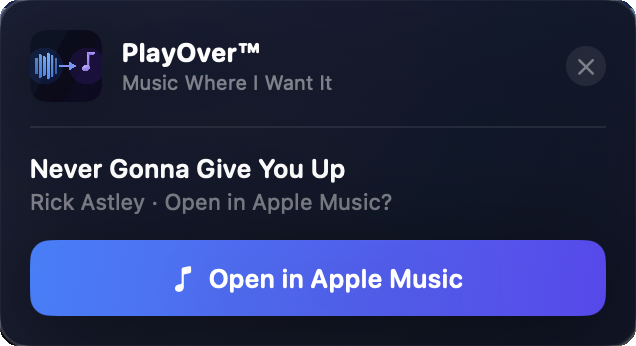
Copy any music link and a menu bar popup appears instantly. Convert to your preferred streaming platform without opening a browser tab.

Native macOS, effortless conversion.

📋

Clipboard Monitoring

PlayOver watches your clipboard in the background. Copy a music link with ⌘+C and a popup appears instantly in the top right of your screen — no app switching required.

🖥️

Menu Bar App

PlayOver lives in your Mac menu bar, out of the way but always available. Click it to see your recent conversions or change your preferred platform.

🚀

Launches at Login

PlayOver starts automatically when you log in to your Mac and runs quietly in the background. It's always ready without any extra steps.

🎯

Works Everywhere

Works with any app that lets you copy a link — Safari, Chrome, Firefox, Spotify, Discord, Messages, and more. If you can ⌘+C it, PlayOver can convert it.

🔒

Private by Design

PlayOver only reads clipboard content that looks like a music link. It never reads, stores, or shares other clipboard data.

💰

Completely Free

No subscriptions, no ads, no in-app purchases. PlayOver is free forever on every platform.

Up and running in seconds.

PlayOver for Mac integrates with macOS natively. Setup takes less than a minute.

1

Download PlayOver from the Mac App Store

It's free and installs like any other Mac app. No account or sign-up needed.

2

Grant clipboard access

On first launch, macOS will ask if PlayOver can access your clipboard. Click Allow — this is what lets PlayOver detect music links.

3

Set your preferred platform

Click the PlayOver icon in the menu bar and select your preferred streaming service. You can change this any time.

4

Copy any music link

Find a song on Spotify, YouTube, Apple Music, or anywhere else and copy the link with ⌘+C. The PlayOver popup appears instantly in the top right of your screen.

Common questions.

How does PlayOver detect music links on Mac?
PlayOver monitors your clipboard in the background. When you copy a link from a supported streaming service using ⌘+C, PlayOver recognises it and shows a popup with the song details and platform options. It does not read or store any other clipboard content.
The popup isn't appearing when I copy a link. What should I do?
First, check that PlayOver is running — you should see its icon in the menu bar. If it's not there, open PlayOver from your Applications folder. If the icon is there but the popup isn't appearing, make sure PlayOver has clipboard access in System Settings → Privacy & Security → Pasteboard. If it still doesn't work, try quitting and relaunching PlayOver from the menu bar icon.
What permissions does PlayOver need?
PlayOver needs access to your clipboard (Pasteboard) to detect music links. On macOS Ventura and later, you'll be prompted to grant this permission on first launch. PlayOver does not require microphone, camera, location, or any other sensitive permissions.
Which streaming services are supported?
PlayOver supports Spotify, Apple Music, YouTube, YouTube Music, Amazon Music, Tidal, and Deezer — both as sources and destinations.
How do I stop PlayOver from launching at login?
Click the PlayOver icon in the menu bar and toggle off "Launch at Login". You can also manage login items in System Settings → General → Login Items.
What macOS version is required?
PlayOver for Mac requires macOS 13 (Ventura) or later.
What data does PlayOver collect?
PlayOver doesn't require an account and never collects your name, email, or personal identity. It does send anonymous analytics (via PostHog) to help improve the app — including the links you convert, the platforms involved, and general device and locale info — associated only with a random device ID, never with you personally. We don't sell your data. See our Support Tip Jar Privacy Policy for full details.