Every music link opens where you actually listen.
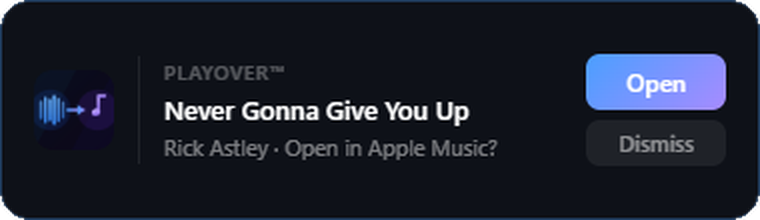
Someone sends you a Spotify link. You use Apple Music. Normally that means a browser tab, a search, and finding the song yourself. PlayOver does it for you: copy any music link and a small popup appears near your cursor — one click and the song is playing on your platform.
It works from anywhere you can copy a link — Chrome, Edge, Firefox, Discord, Slack, WhatsApp, a text file. Set your platform once and every link after that is a single click. Nothing to paste into a website, no tab to close.
It works in both directions. Spotify to Apple Music, Apple Music to YouTube Music, Tidal to Deezer — any of the ten supported services to any other. You can also create one PlayOver link to send to other people, which opens on whatever platform each of them uses.
Move a whole playlist, too. Pick one of your Spotify or Apple Music playlists, or paste a link to one, and PlayOver creates it in the other app, in your account. Apple Music asks you to sign in once, inside PlayOver. Spotify asks you to sign in once and needs Spotify Premium; without Premium you can still paste a public Spotify playlist’s link and PlayOver reads its first 100 songs.
Apple Music on Discord. And Tidal. And everything else.
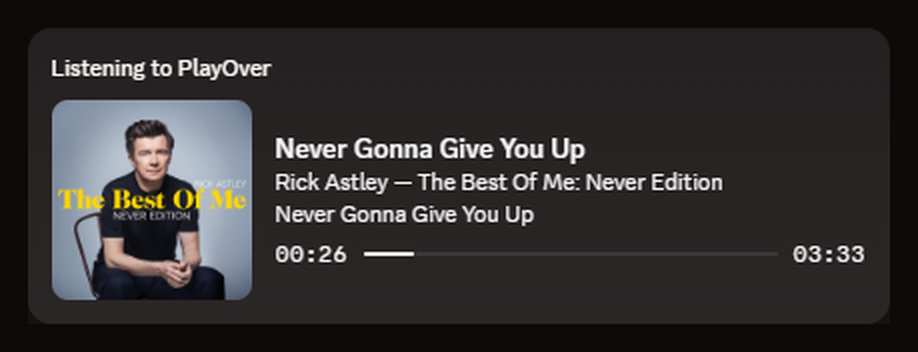
Discord shows Spotify natively and nothing else. PlayOver for Windows fills the gap for the rest — song, artist, album art and a live progress bar on your profile, straight from the Apple Music, Tidal, Amazon Music, Deezer or YouTube Music desktop app.
There's no Discord authorization step, no account, and nothing to link. Install it, flip the switch, play music.
The part nobody else does: every other rich presence tool points its link at your service, which is useless to a friend who isn't on it. PlayOver's card opens on whichever platform the person clicking actually uses.
Song requests and an overlay for your stream.
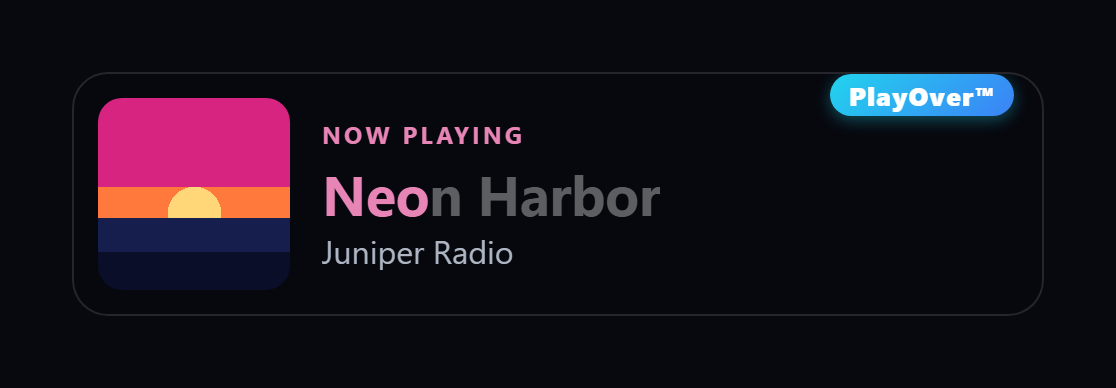
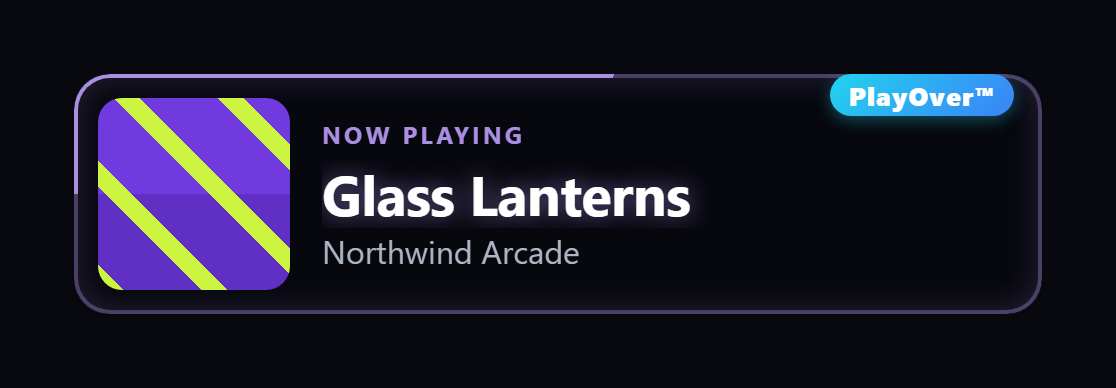
If you stream, the same install gives your chat song requests — a viewer pastes a link from whatever music app they use and PlayOver queues the right track on yours — plus a now-playing overlay for OBS with a QR code viewers can scan to open the song on their own service.
Chat requests, the !song reply and channel-point
redemptions work the same on Twitch and on Kick — and a Kick streamer needs no Twitch
account at all. TikTok LIVE chat takes the same !sr
requests once you sign in to TikTok inside PlayOver, and TikTok has no channel points, so
requests there are always free. On Twitch and Kick, a viewer who types
!playoverme gets the song playing now in a Discord DM.
See the whole streaming side: the commands,
the ten overlay styles, what each platform gets, and the two-minute setup.
Links from any platform. PlayOver takes requests as links from any supported platform — and queues to Apple Music and YouTube Music as well as Spotify. How that works →
Scrobble from the apps that never could.
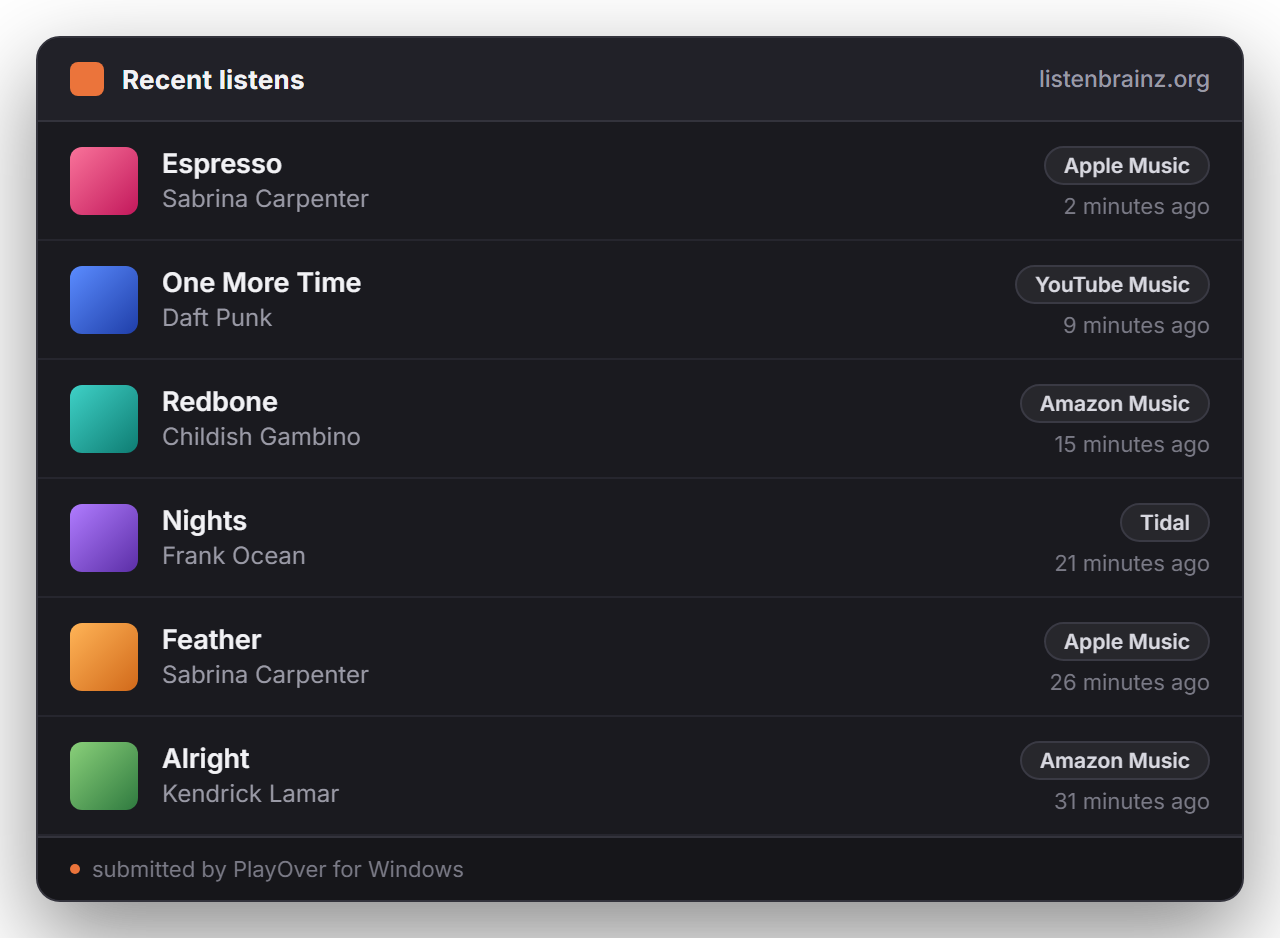
Scrobbling is a permanent log of everything you play — your top artists, your charts, your year in review, across every app instead of one. Spotify listeners have had it for twenty years. On Windows, Apple Music has no scrobbling at all, Amazon Music and the YouTube Music desktop app have none either, and Last.fm's own Windows scrobbler stopped being maintained years ago — so those plays just vanish.
PlayOver reads whatever Windows reports as playing and scrobbles it to ListenBrainz — the open, exportable one from the MusicBrainz Foundation. Connecting is one pasted token. No API key to register and no developer account, which is what most Apple Music scrobblers make you do.
It counts properly. A play only scrobbles once you've actually heard half the track, or four minutes — the standard rule — so skipping through an album doesn't pollute your history. Spotify plays are skipped by default, since Spotify already scrobbles at the account level and you'd get doubles.
Host a party. Guests add songs from any app.
Start a party and PlayOver shows a QR code and a five-letter code. Guests scan it and add songs from whatever music app they already use — search, or paste a link from Spotify, Apple Music, YouTube, Tidal and more. There's no app to install and no account to make. Every request lands in one queue and plays through your PC's speakers, with the name of whoever asked for it.
You set the house rules: whether guests can vote to skip and how many votes it takes, whether explicit tracks are allowed, and how many songs each guest can request. Parties are invite-only — PlayOver never broadcasts your party to anyone nearby.
Not in the same room? Start a listen-along instead and everyone's own player stays in sync. Joining someone else's party from your PC works the same way: paste their link or code, pick a name, and choose where it plays — Spotify, Apple Music through Cider, or right in your browser — with a nudge control for Bluetooth speaker delay. When the night's over, Past parties keeps every setlist, ready to save to Spotify or Apple Music, or to open as a YouTube playlist.
What hosting needs. Hosting on Spotify needs Spotify Premium and a one-time setup of about three minutes that the app walks you through — no Twitch account required. Apple Music parties play through Cider, or straight from your browser with nothing installed (that needs an Apple Music subscription). YouTube Music parties play through Pear Desktop, with its API Server plugin turned on. See how guests join →